
· DNS & Domains · 2 min read
How to add a domain to your hosting
Learn how to add a new domain to your web hosting account in DirectAdmin so your website goes live.

Adding a domain to your hosting account is one of the first things you need to do after signing up. This guide walks you through the process in DirectAdmin, from navigating to the domain settings to confirming the new domain is active.
Prerequisite: You need an active web hosting plan with DuelHost.
Step-by-step guide
Step 1: Log in to DirectAdmin
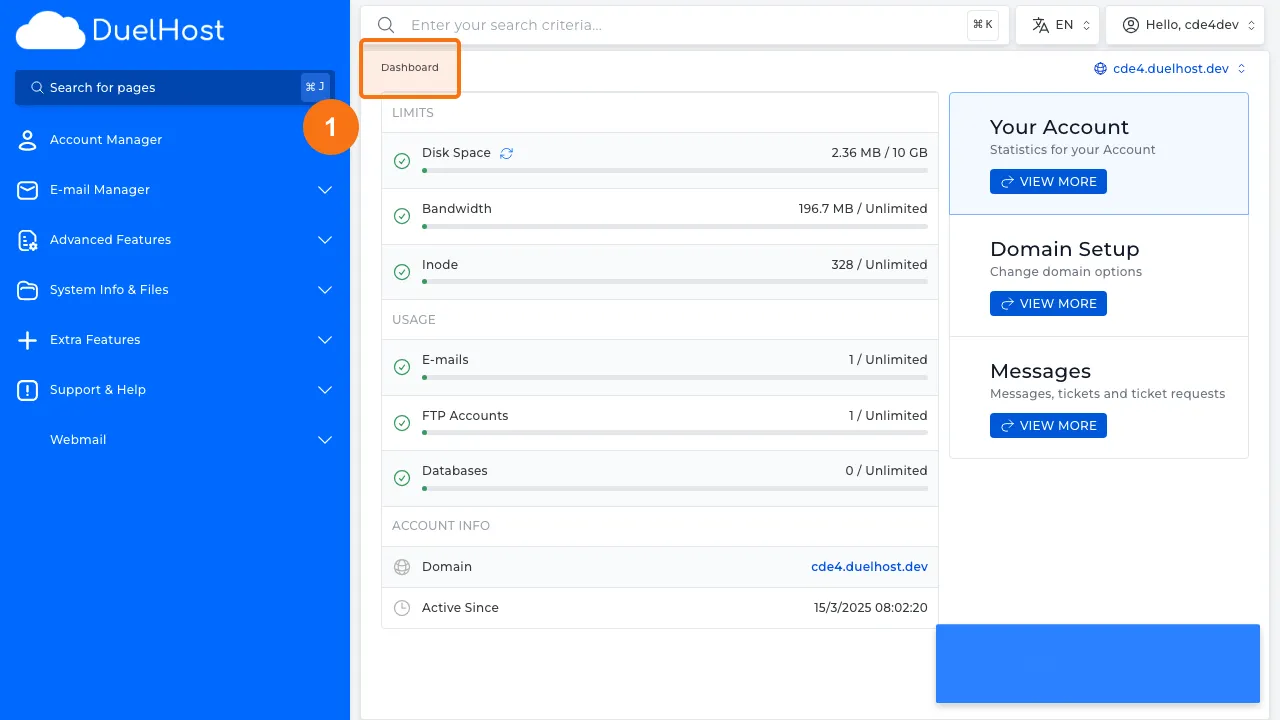
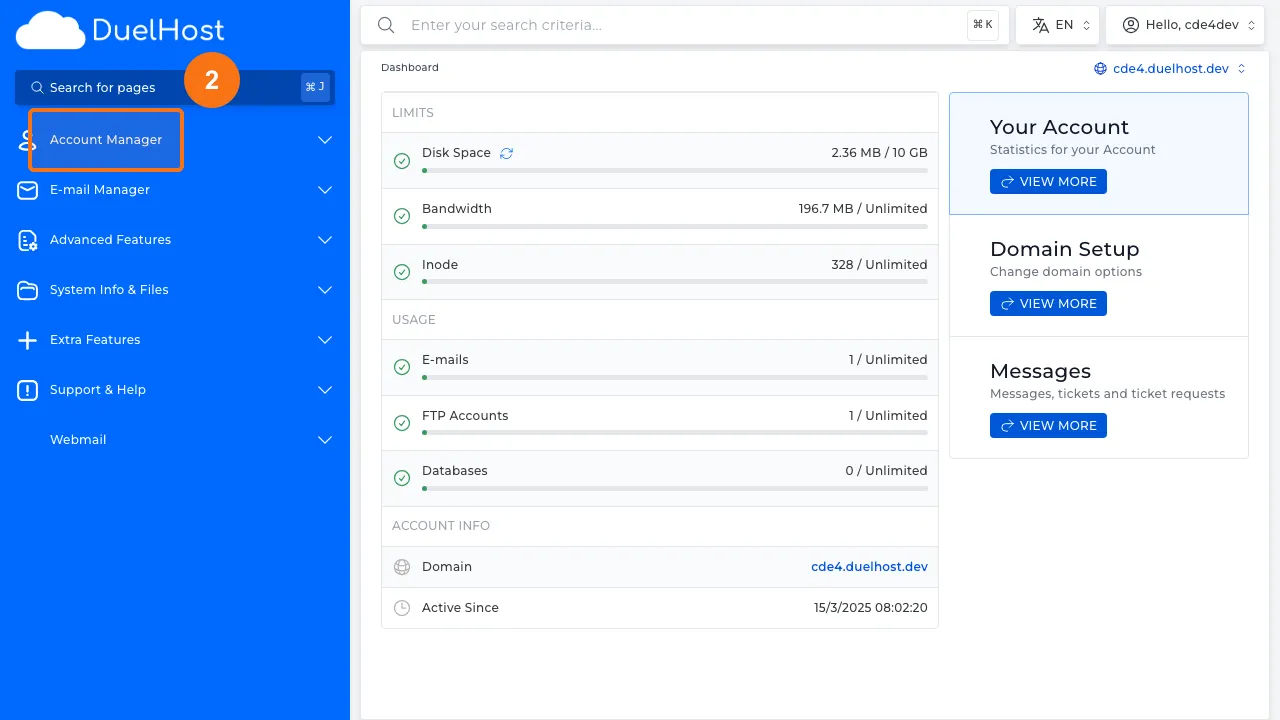
Step 2: Click “Account Manager” in the sidebar
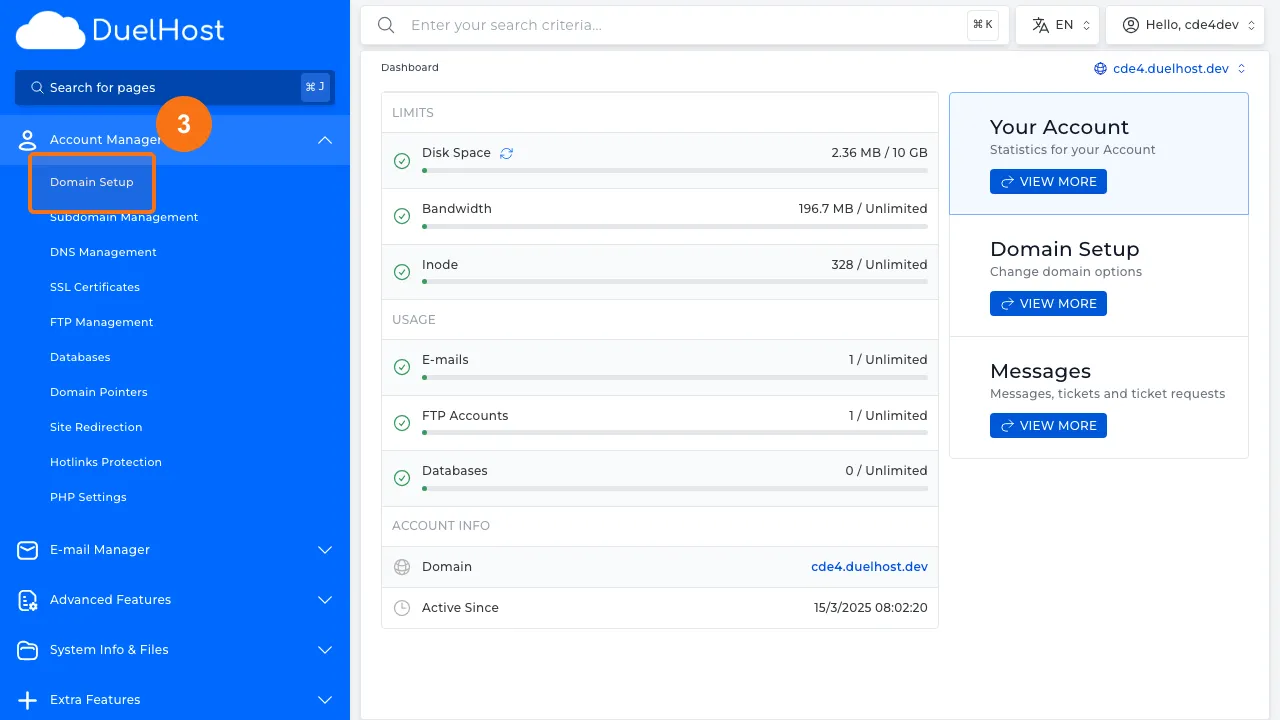
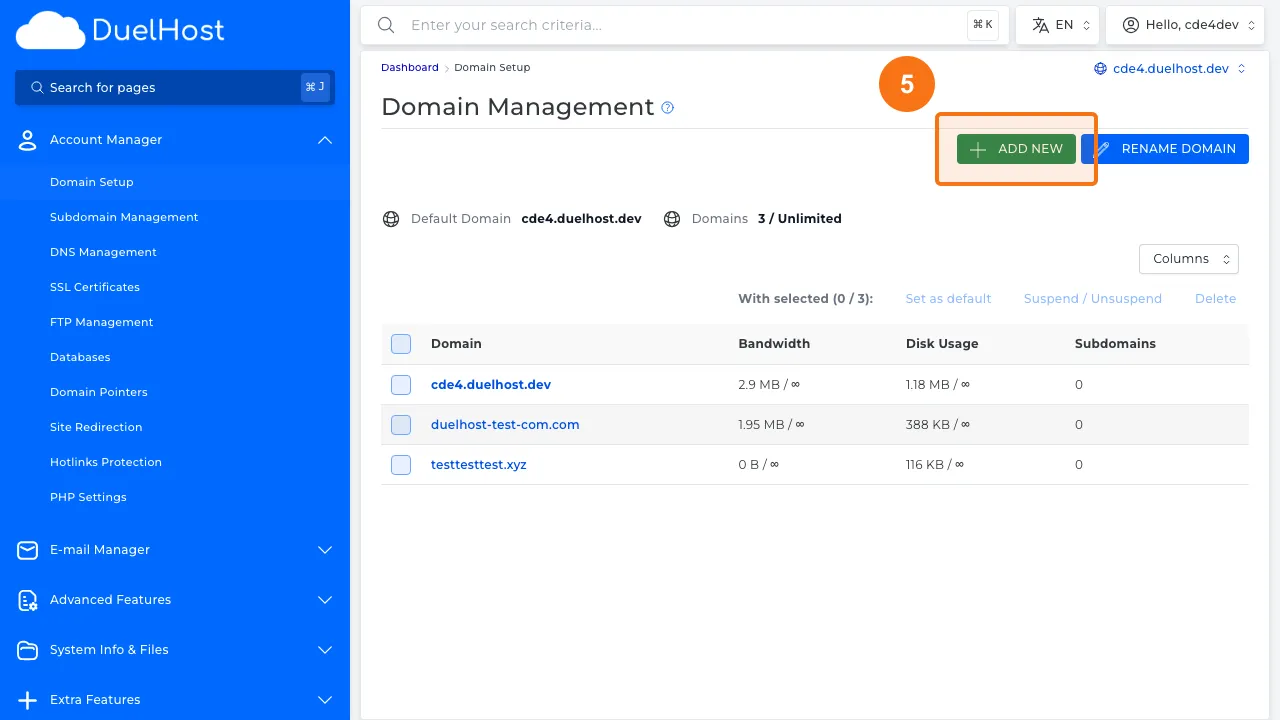
Step 3: Click “Domain Setup” to view the domain overview
Step 4: View the list of existing domains
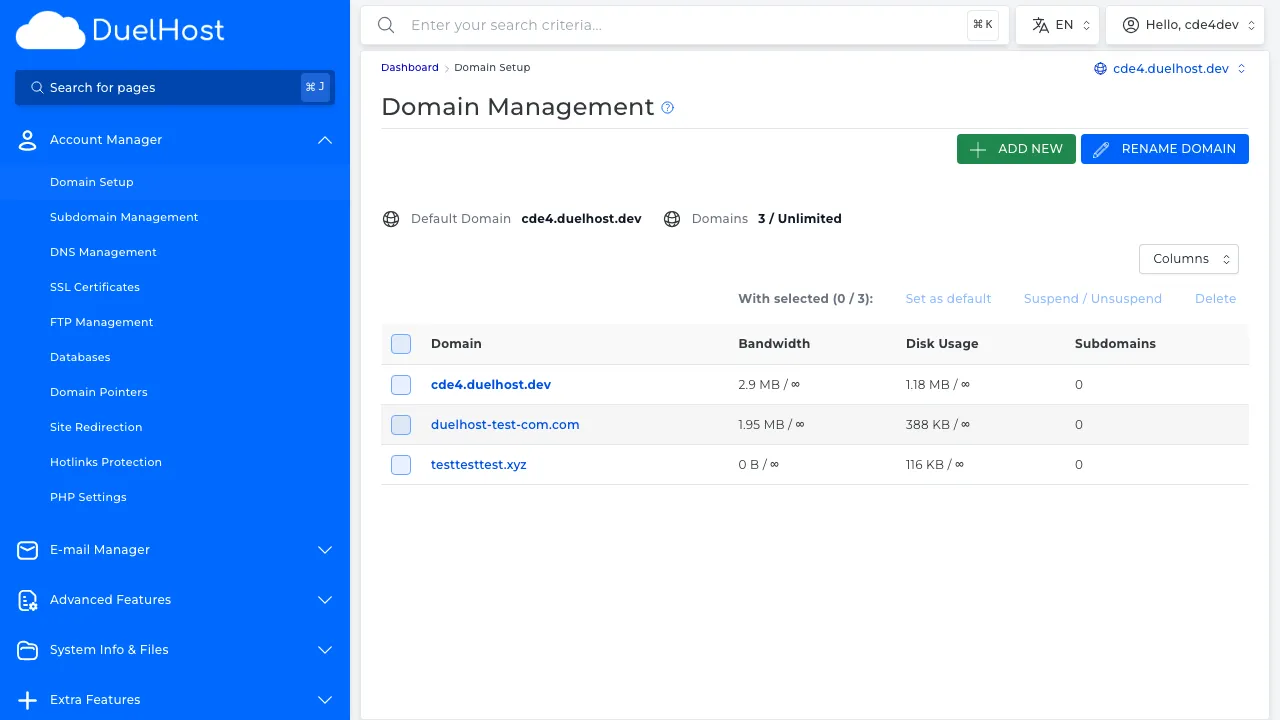
Step 5: Click “ADD NEW” to open the form
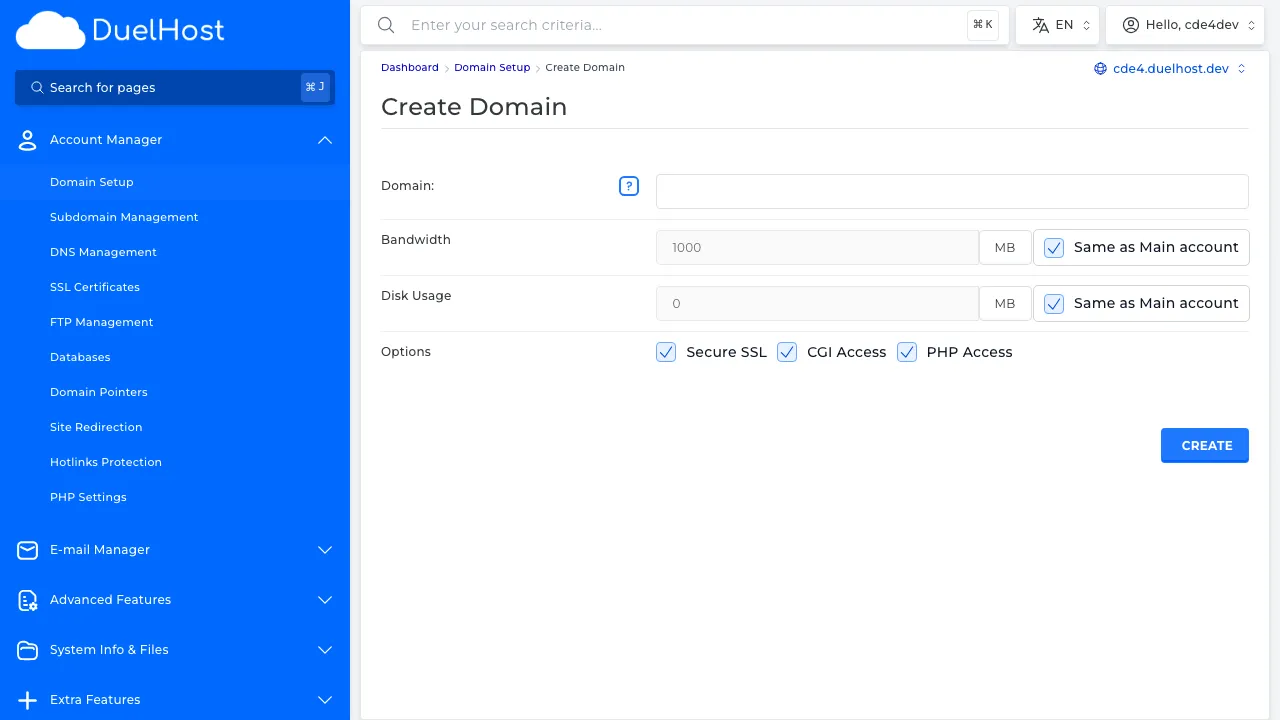
Step 6: View the form — enter the domain name and then click ‘CREATE’ to create
Tips and notes
- Make sure your domain’s DNS is pointed to DuelHost’s nameservers before adding it
- It can take up to 24-48 hours for DNS changes to propagate worldwide
- You can add multiple domains to a single hosting account if your plan supports it
Need help?
If you run into any issues, our support team is ready to help. Contact us at support@duelhost.dk or through our contact form.
Del: