
· Email · 2 min read
How to set up an email auto-reply
Learn how to configure an automatic email reply in DirectAdmin for out-of-office messages or confirmations.
Auto-replies are useful when you are on vacation, away from the office, or simply want to send an automatic confirmation to anyone who emails you. DirectAdmin makes it easy to set up and customize your auto-reply message.
Prerequisite: You need an active web hosting plan with DuelHost.
Step-by-step guide
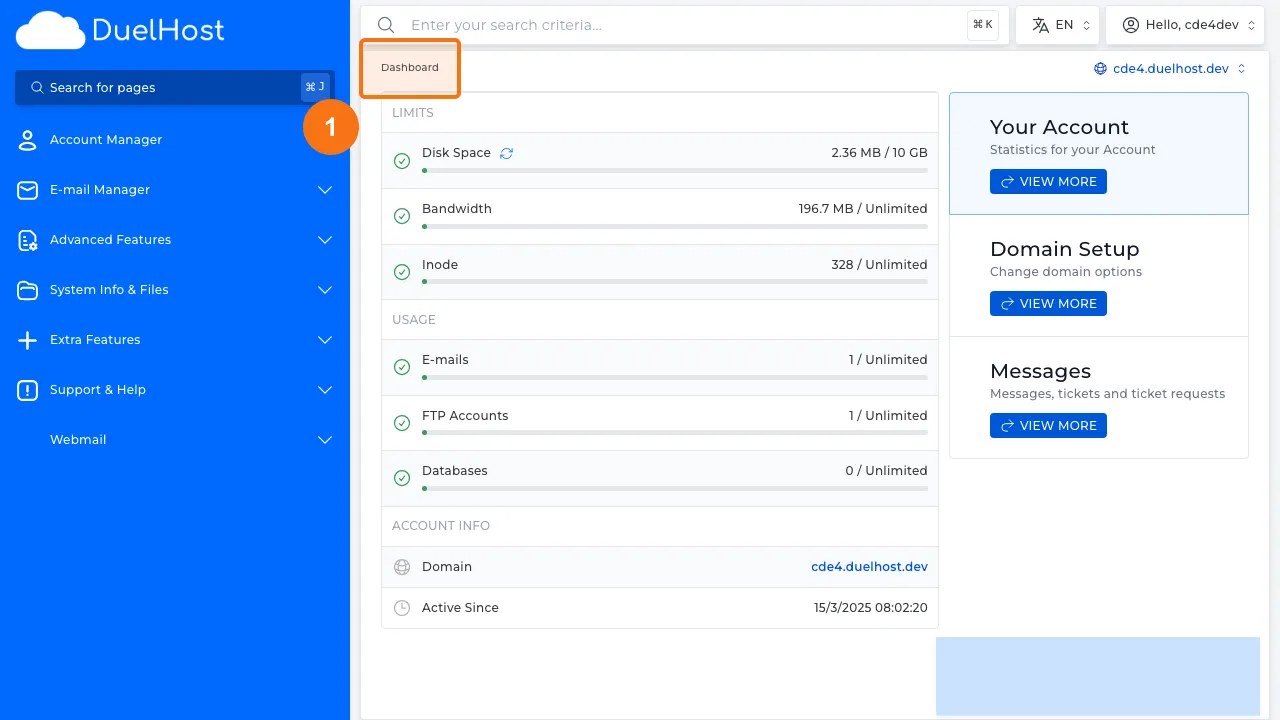
Step 1: Log in to DirectAdmin
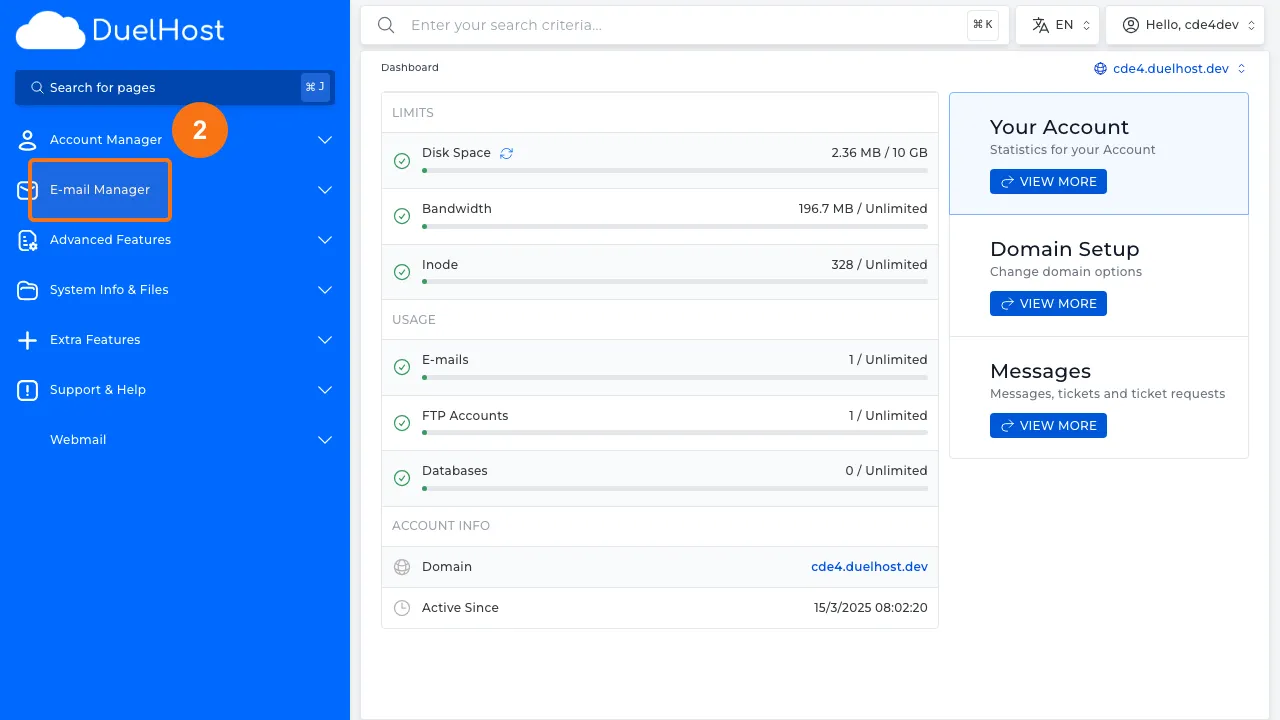
Step 2: Click “E-mail Manager” in the sidebar
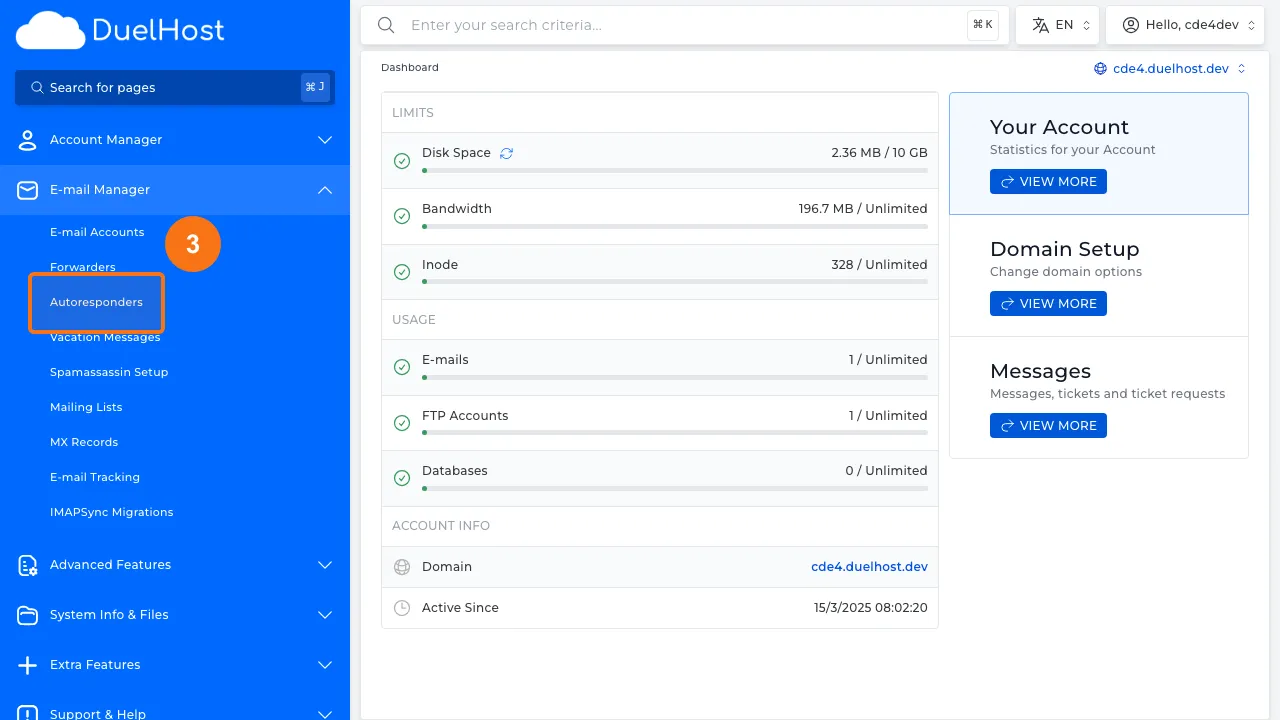
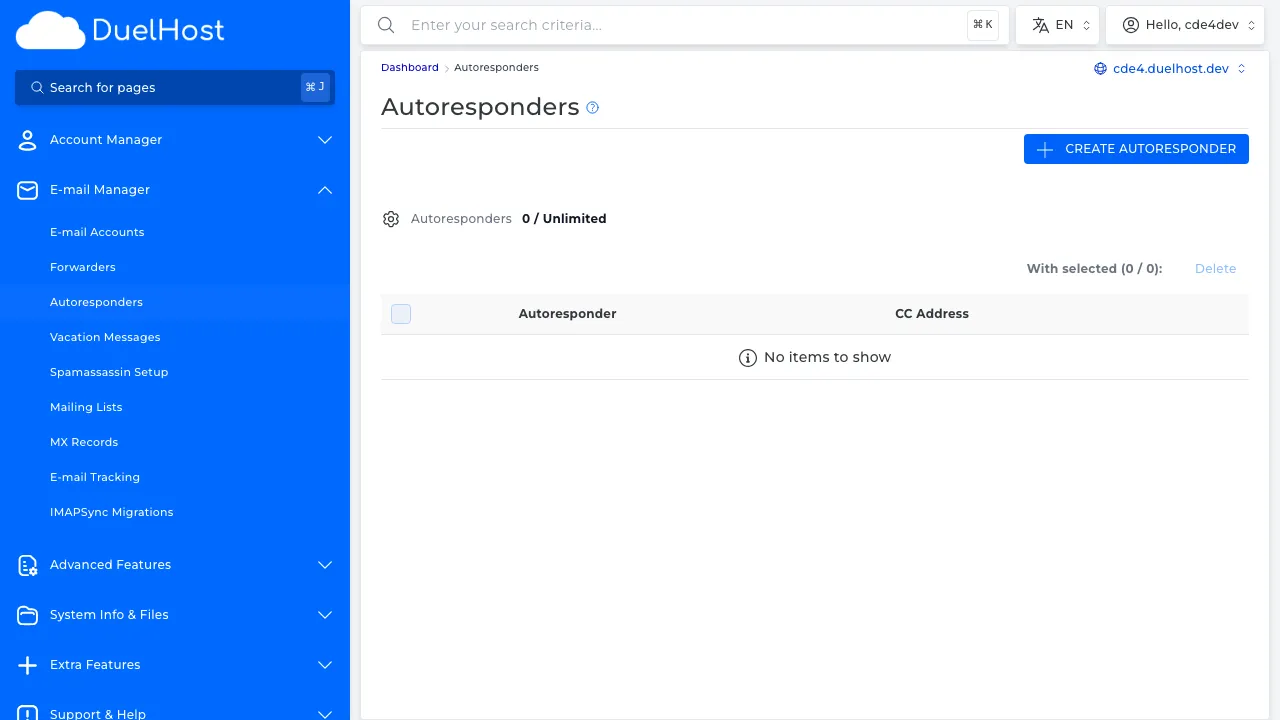
Step 3: Click “Autoresponders” to view automatic replies
Step 4: View the autoresponder overview
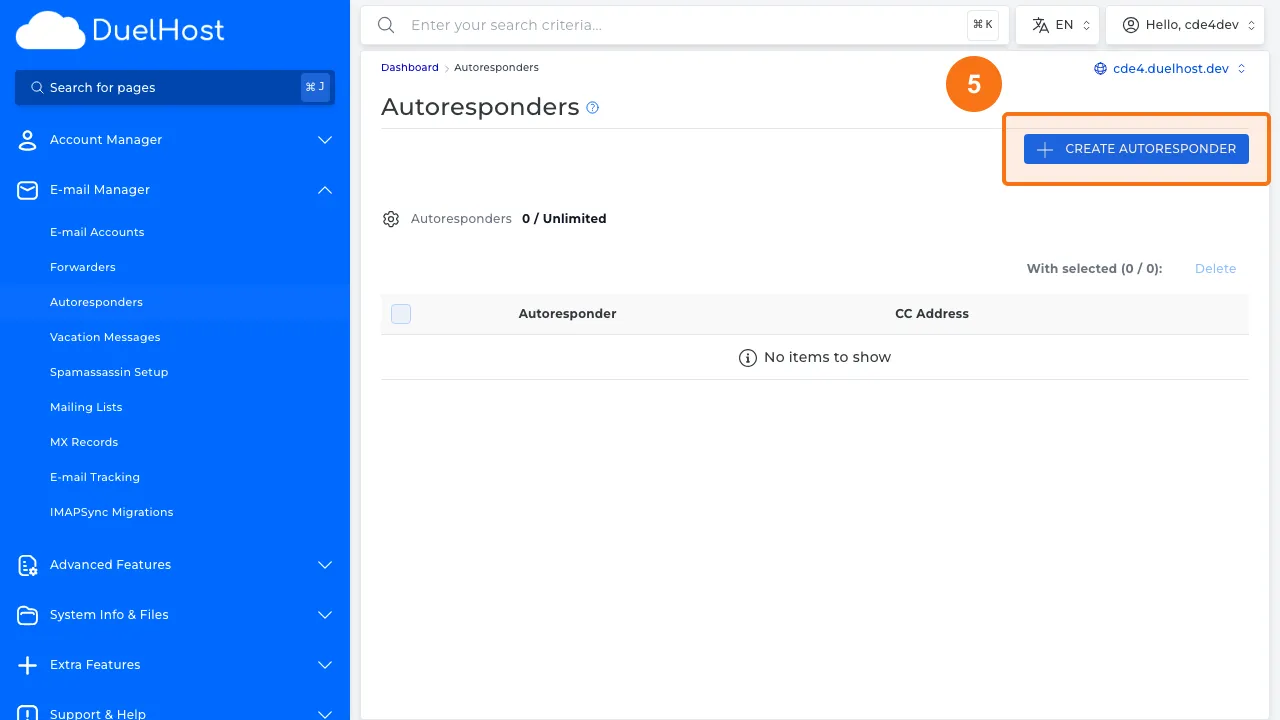
Step 5: Click the create button to set up a new autoresponder
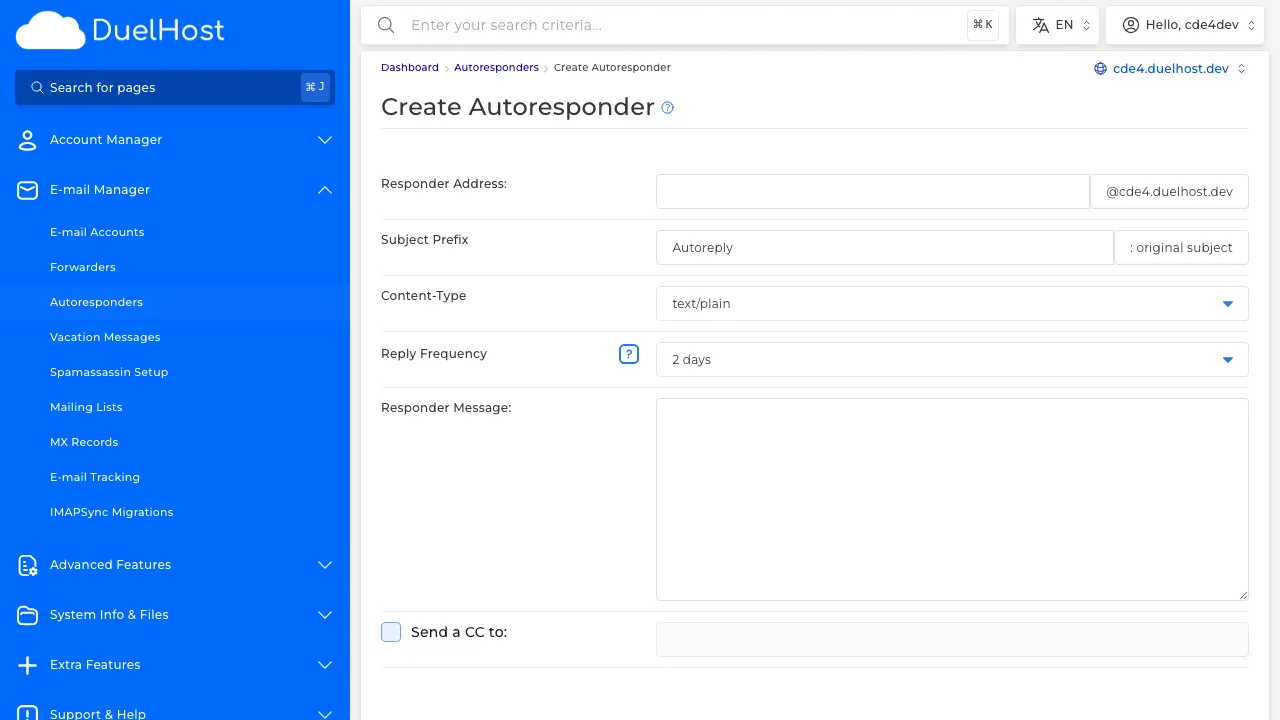
Step 6: View the form — select the email account, write the message and specify dates, then click ‘CREATE’ to save
Tips and notes
- Remember to turn off the auto-reply when you are back to avoid confusing senders
- Keep your auto-reply message short and professional
- Avoid including sensitive information in auto-reply messages
Need help?
If you run into any issues, our support team is ready to help. Contact us at support@duelhost.dk or through our contact form.
Del: