
· Files & FTP · 2 min read
How to use File Manager in DirectAdmin
Learn how to navigate, upload, edit, and manage your website files using the built-in File Manager in DirectAdmin.
The File Manager in DirectAdmin gives you a web-based interface to browse, upload, edit, and manage your website files without needing an FTP client. It is a convenient tool for quick file changes and uploads.
Prerequisite: You need an active web hosting plan with DuelHost.
Step-by-step guide
Step 1: Log in to DirectAdmin
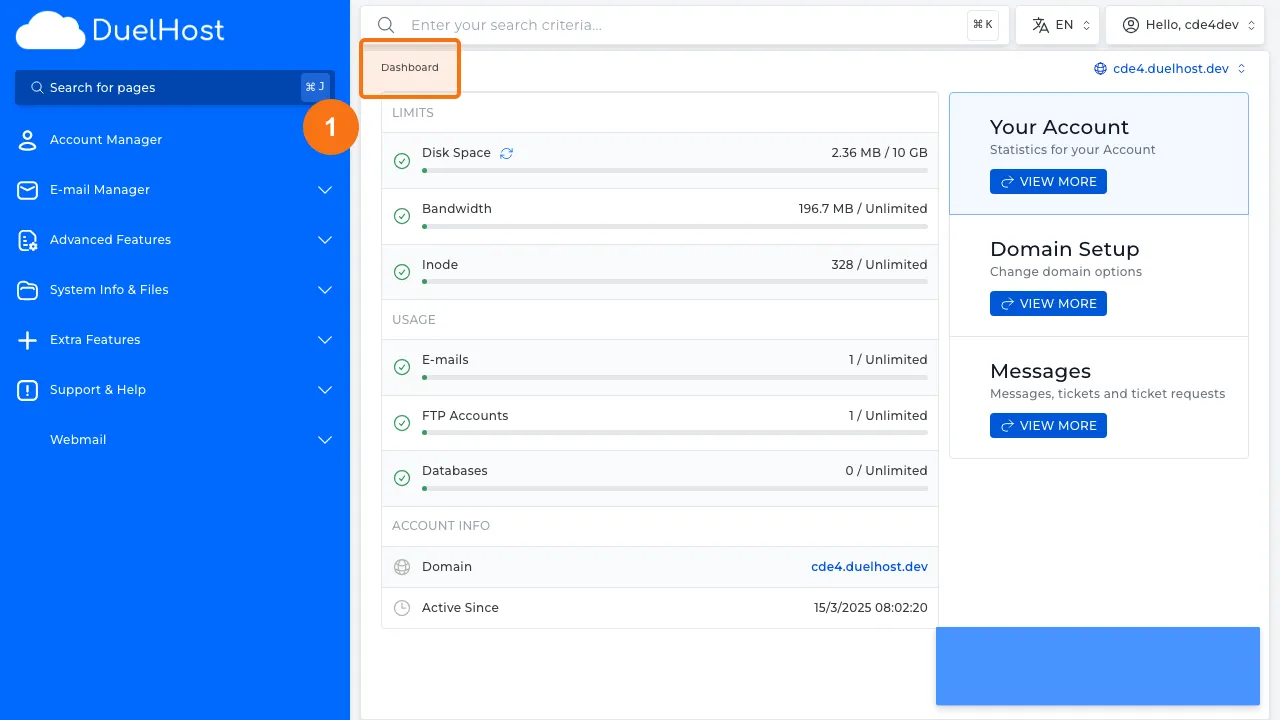
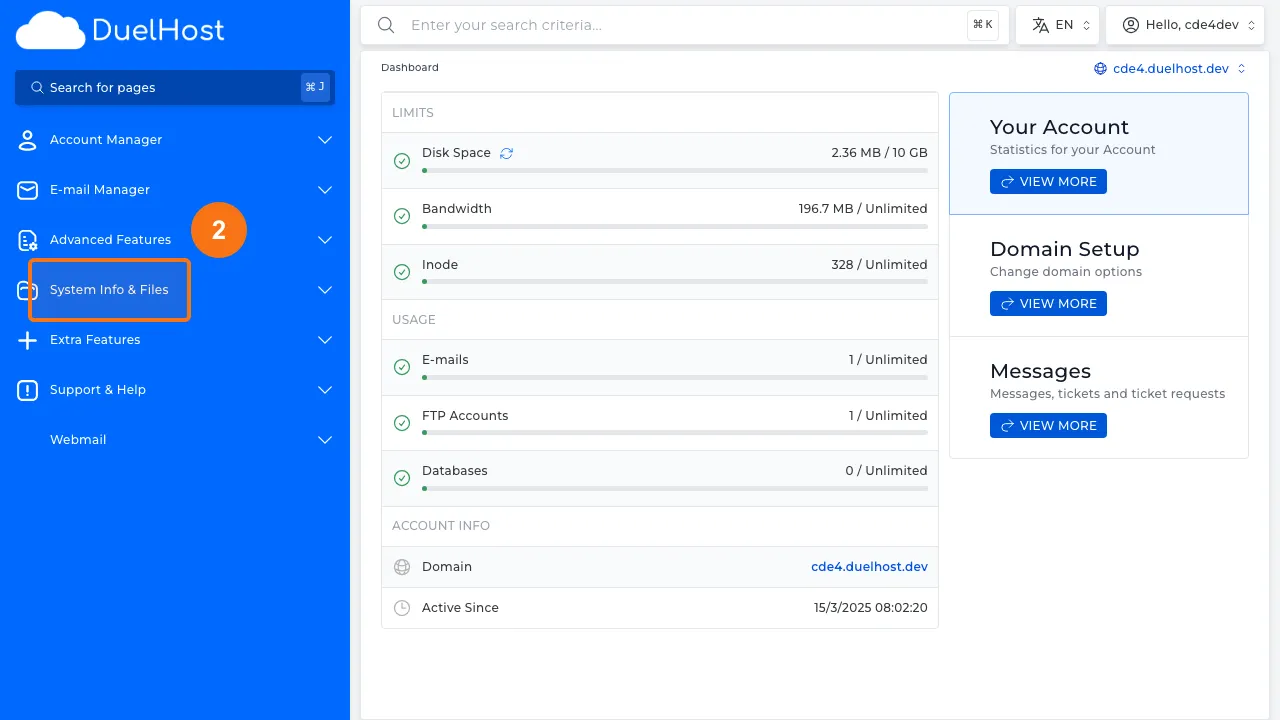
Step 2: Click “System Info & Files” in the sidebar
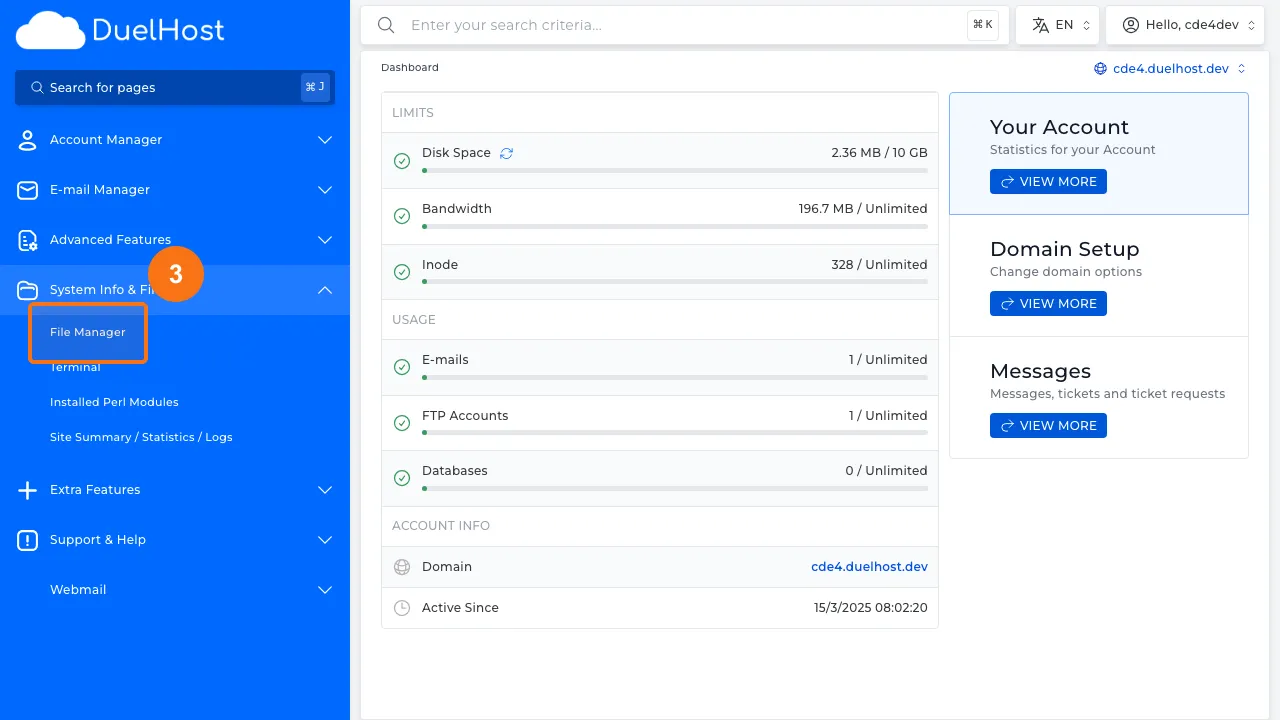
Step 3: Click “File Manager” to open the file manager
Step 4: View File Manager with your home directory displayed
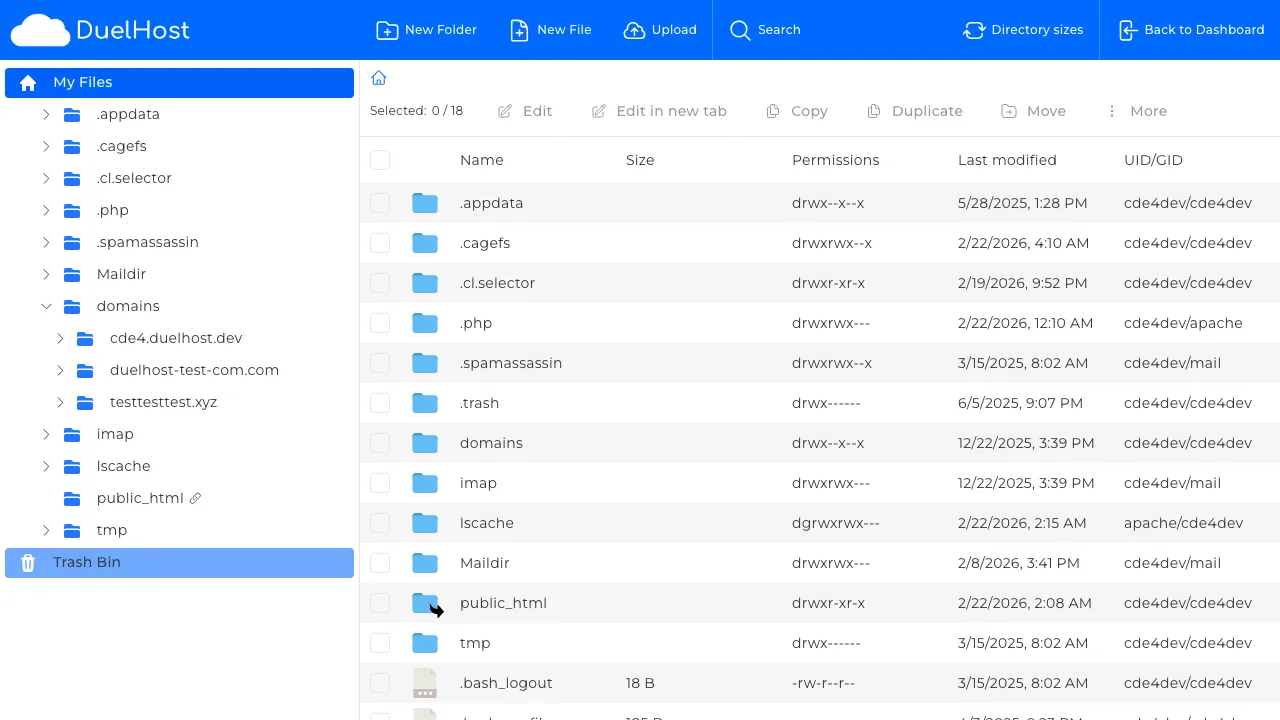
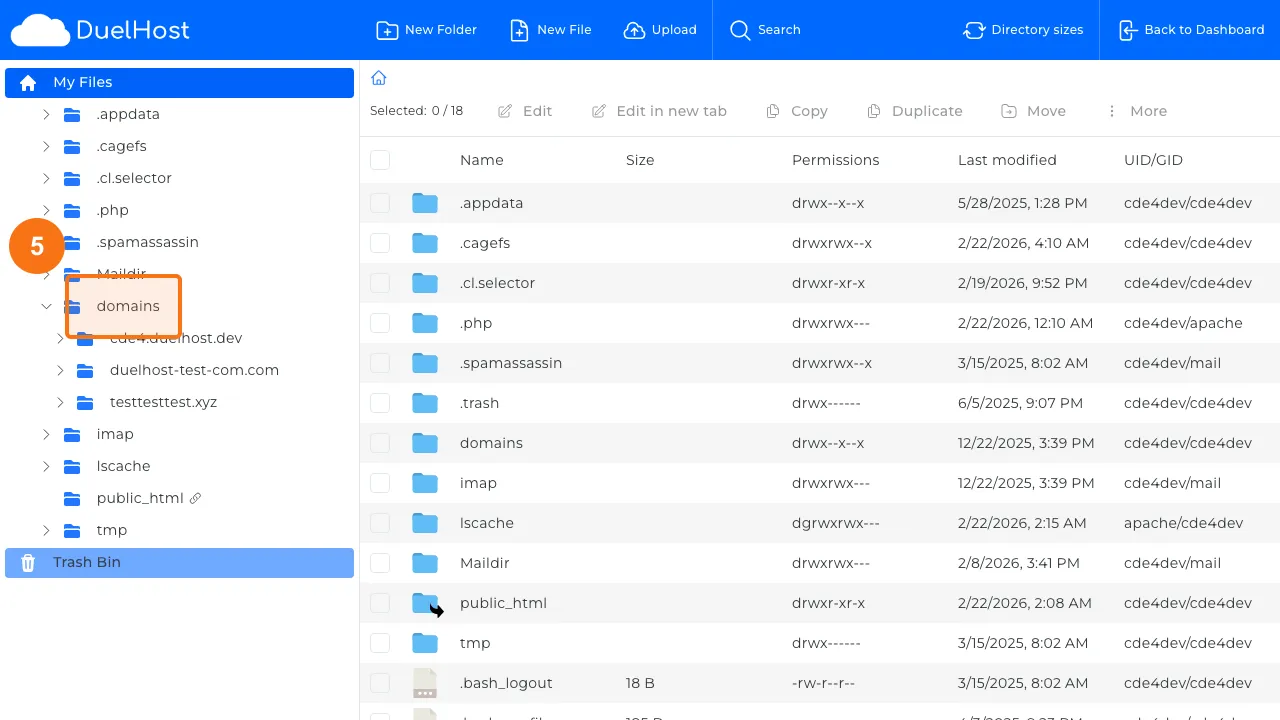
Step 5: Navigate to the domains/ folder by clicking “domains”
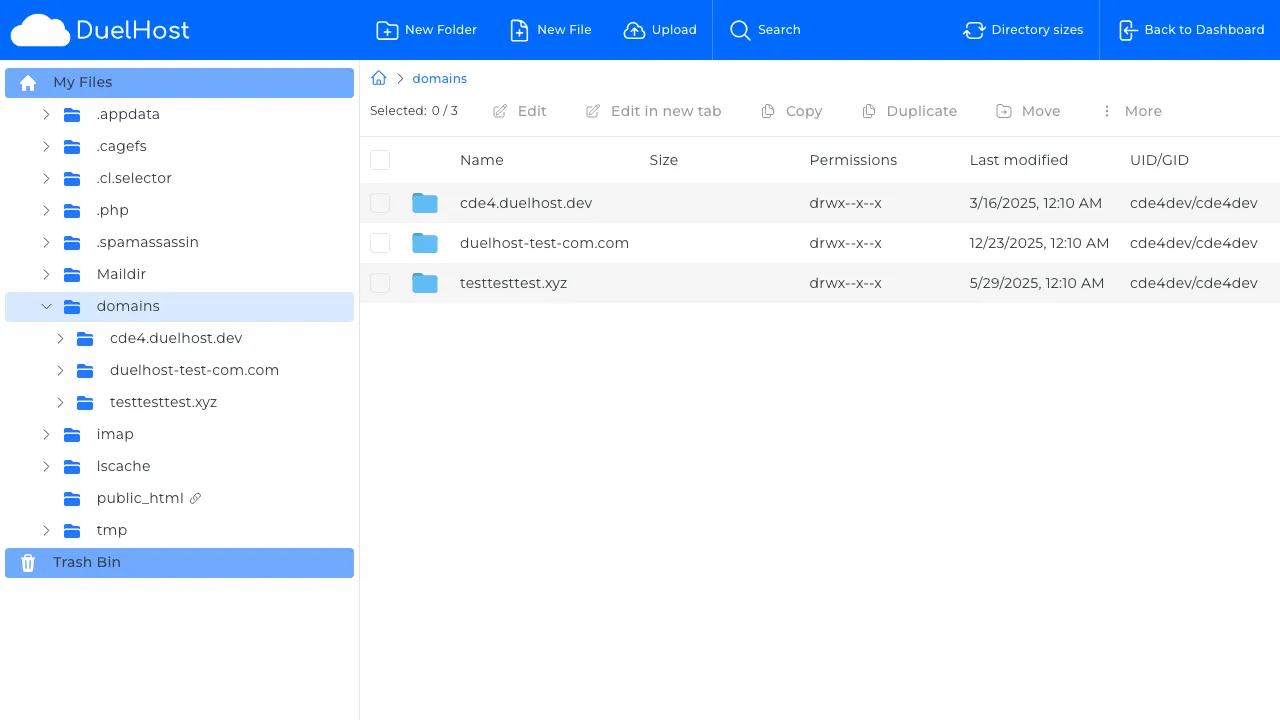
Step 6: View the contents of the domains/ folder with your domain folders
Tips and notes
- Your website files should be placed inside the public_html directory
- Be careful when deleting or renaming files, as it can break your website
- For large file uploads, consider using FTP instead of the File Manager
- You can edit text files directly in the File Manager’s built-in editor
Need help?
If you run into any issues, our support team is ready to help. Contact us at support@duelhost.dk or through our contact form.
Del: